Thursday, October 30, 2014

Linux Create An FTP User Account

Linux Create An FTP User Account

Now your FTP server is up and running. It is time to add additional users to FTP server so that they can login into account to upload / download files. To add a user called tom and set the password, enter:
# adduser -c 'FTP USER Tom' -m tom
# passwd tom
Now tom can login using our ftp server. Make sure the following is set in vsftpd.conf

local_enable=YES

Restart the vftpd:
# service vsftpd restart


CentOS / RHEL 7: Install GCC (C and C++ Compiler) and Development Tools

CentOS / RHEL 7: Install GCC (C and C++ Compiler) and Development Tools

How do I install gnu gcc compiler and related tools such as autoconf, automake, flex, c++ compiler, and bison on a CentOS 7 or Red Hat Enterprise Linux version 7 server?

You can setup a basic development environment with the following packages on a CentOS Enterprise Linux or Red Hat Enterprise Linux version 7:

  1. autoconf
  2. automake
  3. binutils
  4. bison
  5. flex
  6. gcc
  7. gcc-c++
  8. gettext
  9. libtool
  10. make
  11. patch
  12. pkgconfig
  13. redhat-rpm-config
  14. rpm-build
  15. rpm-sign

Open the Terminal app and type the following commands.

Command to list groups on a CentOS / RHEL 7

Type the following yum command:
# yum group list
Sample outputs:

Fig. 01: CentOS / RHEL 7: List Package Groups Command

Command to install GCC and Development Tools on a CentOS / RHEL 7 server

Type the following [nixcmd name="yum" as root user:
# yum group install "Development Tools"
OR
$ sudo yum group install "Development Tools"
Sample outputs:

Verify your gcc installation on a CentOS / RHEL 7 server

Type the following command to see gcc location:

$ whereis gcc
gcc: /usr/bin/gcc /usr/lib/gcc /usr/libexec/gcc /usr/share/man/man1/gcc.1.gz

Type the following command to see gcc compiler version:

$ gcc --version
gcc (GCC) 4.8.2 20140120 (Red Hat 4.8.2-16)
Copyright (C) 2013 Free Software Foundation, Inc.
This is free software; see the source for copying conditions.  There is NO
warranty; not even for MERCHANTABILITY or FITNESS FOR A PARTICULAR PURPOSE.

Test gcc C compiler with a sample foo.c program

Create a file called foo.c as follows:

 
#include<stdio.h>
int main(void){
        printf("Hello World!\n");
        return 0;
}
 

To compile foo.c into foo executable file, type:
$ cc foo.c -o foo
To execute foo program, type:

$ ./foo
Hello World!


CentOS / RHEL 7 Restart / Stop / Start Networking Command

CentOS / RHEL 7 Restart / Stop / Start Networking Command

I recently installed CentOS Linux version 7 or Red Hat Enterprise Linux version 7. How can I restart networking service using command line options? How can I start / stop and restart networking service on a CentOS/RHEL 7 based system?

CentOS 7 / RHEL 7 / Fedora Linux (many other modern distor) uses Systemd. It is a system and service manager for Linux operating systems. In newer distro such as CentOS7/RHEL7 systemd replaces Upstart as the default init system.

In older versions of CentOS or Red Hat Enterprise Linux, you used init scripts located in the /etc/rc.d/init.d/ directory. These init scripts were typically written in Bash, and allowed the system administrator to control the state of services and daemons in their system. In CentOS/RHEL 7, these init scripts have been replaced with service units.

CentOS 7 / RHEL 7 networking service name

To bring up/down networking service you need to use the network.service.

Say hello to systemctl command

Use this command to control the systemd system and act as a service manager.

CentOS 7 / RHEL 7 get status of network service

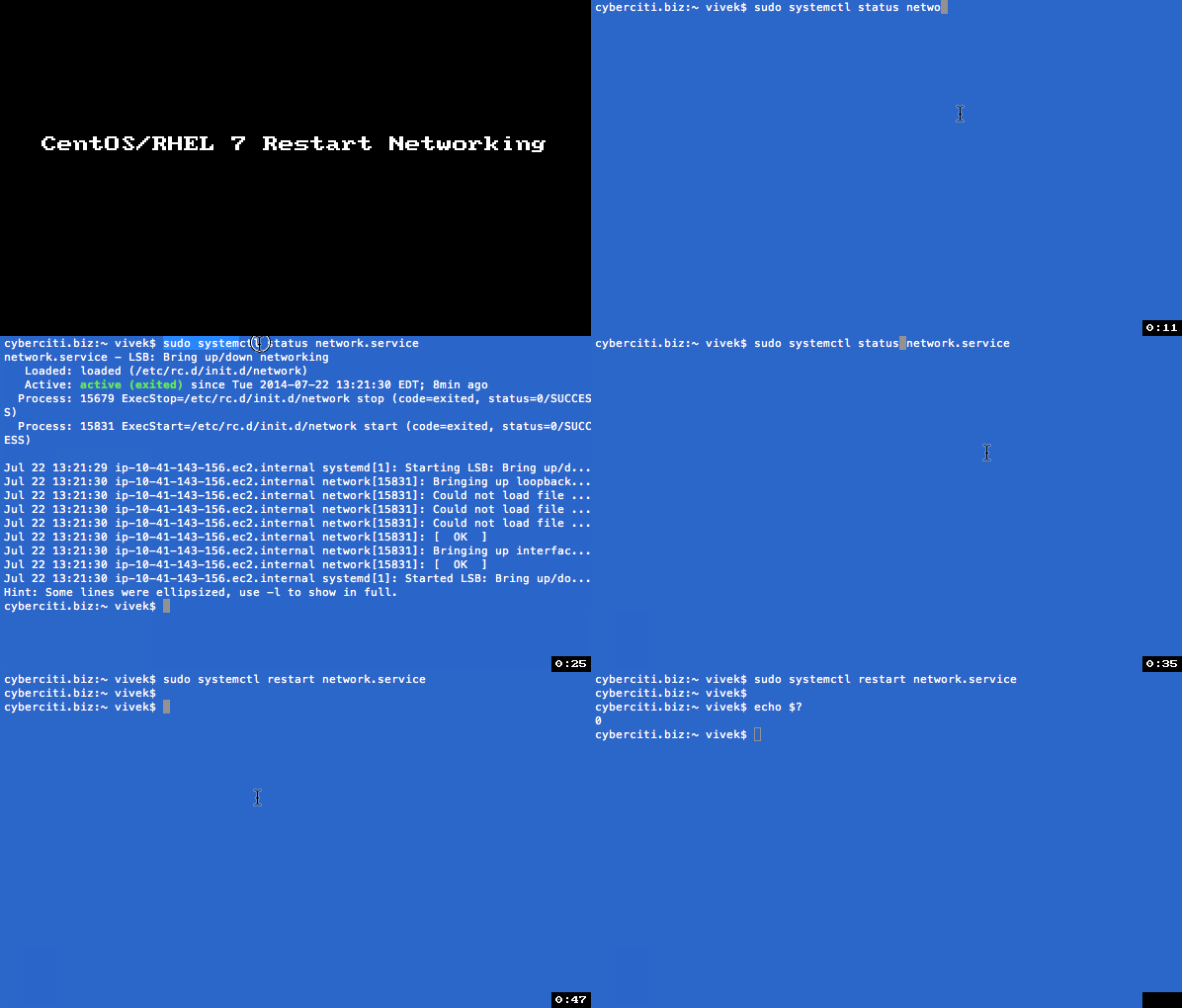
sudo systemctl status network.service

OR

sudo systemctl status network

Sample outputs:

Fig.01: CentOS / RHEL 7 Networking Service Status Command

CentOS 7 / RHEL 7 restart network service

sudo systemctl restart network.service

OR

sudo systemctl restart network

CentOS 7 / RHEL 7 start network service

sudo systemctl start network.service

OR

sudo systemctl start network

CentOS 7 / RHEL 7 stop network service

sudo systemctl stop network.service

OR

sudo systemctl stop network

Sample outputs:

Animated gif 01: systemctl command in action

A note about old service and chkconfig command

The service and chkconfig commands are still available in the system and work as expected, but are only included for compatibility reasons and should be avoided as may be dropped in future release.


Install EPEL Repo on a CentOS and RHEL 7.x

Install EPEL Repo on a CentOS and RHEL 7.x

How do I install the extra repositories such as Fedora EPEL repo on a Red Hat Enterprise Linux server version 7.x or CentOS Linux server version 7.x?

You can easily install various packages by configuring a CentOS 7.x or RHEL 7.x system to use Fedora EPEL repos and third party packages. Please note that these packages are not officially supported by either CentOS or Red Hat, but provides many popular packages and apps.

How to install RHEL EPEL repository on Centos 7.x or RHEL 7.x

The following instuctions assumes that you are running command as root user on a CentOS/RHEL 7.x system and want to use use Fedora Epel repos.

Install the extra EPEL repositories

The command is as follows to download epel release for CentOS and RHEL 7.x using wget command:

 
cd /tmp
wget https://dl.fedoraproject.org/pub/epel/7/x86_64/e/epel-release-7-2.noarch.rpm
ls *.rpm
 

To install epel-release-7-2.noarch.rpm, type:

 
sudo yum install epel-release-7-2.noarch.rpm
 

Sample outputs:

Loaded plugins: amazon-id, rhui-lb
Examining epel-release-7-2.noarch.rpm: epel-release-7-2.noarch
Marking epel-release-7-2.noarch.rpm to be installed
Resolving Dependencies
--> Running transaction check
---> Package epel-release.noarch 0:7-2 will be installed
--> Finished Dependency Resolution
 
Dependencies Resolved
 
================================================================================
 Package            Arch         Version   Repository                      Size
================================================================================
Installing:
 epel-release       noarch       7-2       /epel-release-7-2.noarch        22 k
 
Transaction Summary
================================================================================
Install  1 Package
 
Total size: 22 k
Installed size: 22 k
Is this ok [y/d/N]: y
Downloading packages:
Running transaction check
Running transaction test
Transaction test succeeded
Running transaction
  Installing : epel-release-7-2.noarch                                      1/1
  Verifying  : epel-release-7-2.noarch                                      1/1
 
Installed:
  epel-release.noarch 0:7-2
 
Complete!
 

List your new repos

Once installed you should see epel repo using the following yum repolist command
$ sudo yum repolist
Sample outputs:

Loaded plugins: amazon-id, rhui-lb
repo id                                         repo name                                         status
epel/x86_64                                     Extra Packages for Enterprise Linux 7 - x86_64    5,610
rhui-REGION-client-config-server-7/x86_64       Red Hat Update Infrastructure 2.0 Client Configur     2
rhui-REGION-rhel-server-releases/7Server/x86_64 Red Hat Enterprise Linux Server 7 (RPMs)          4,718
repolist: 10,330

Search and install package

To list all available packages under a repo called epel, enter:
$ sudo yum --disablerepo="*" --enablerepo="epel" list available
OR
$ sudo yum --disablerepo="*" --enablerepo="epel" list available | grep 'package'
OR
$ sudo yum --disablerepo="*" --enablerepo="epel" list available | less
Sample outputs:

Fig. 01: List all available packages under a EPEL Repo on a CentOS/RHEL/Fedora Linux

Example: Search and install htop package from epel repo on a CentOS/RHEL 7.x

The commands are as follows:

## search it ##
sudo yum search htop
 
## get more info, if found ##
sudo yum info htop
 
## install it ##
sudo yum install htop
 

And, there you have it, a larger number of packages to install from EPEL repo on a CentOS and Red Hat Enterprise Linux (RHEL) version 7.x.