Wednesday, December 18, 2013

Install Apache OpenOffice 4.0.1 on Fedora 20/19, CentOS/RHEL 6.5

Install Apache OpenOffice 4.0.1 on Fedora 20/19, CentOS/RHEL 6.5


This is quick guide to install Apache OpenOffice 4.0.1 on Fedora 20/19/18/17/16/15/14/13/12, CentOS 6.5/6.4/6.3/6.2/6.1/6, Red Hat (RHEL) 6.5/6.4/6.3/6.2/6.1/6 with using Apache OpenOffice original RPM packages.

What’s new in Apache OpenOffice 4.0.1 release

  • New Sidebar – The Sidebar makes better use of today’s widescreen displays than traditional toolbars
  • Interoperability Improvements
  • DrawObject Improvements/Enhancements
  • Extensions Improvements/Enhancements
  • Many resource leaks were fixed

Check full feature list here.

Install Apache OpenOffice 4.0.1 on Fedora 20/19/18, CentOS/Red Hat (RHEL) 6.5

1. Download Apache OpenOffice 4.0.1 Linux Package

Apache OpenOffice 4.0.1 32-bit version

Apache OpenOffice 4.0.1 64-bit version

2. Change to root User

su -  ## OR ##  sudo -i

3. Remove OpenOffice.org and LibreOffice.org Packages with following command

yum remove openoffice* libreoffice*

4. Extract Package and Access Directory

Apache OpenOffice 4.0.1

tar -xvf Apache_OpenOffice_4.0.1*     cd en-US

5. Block openoffice.org-ure and libreoffice-ure package updates

In other words, “pin” openoffice.org-ure and libreoffice-ure packages
Add exclude row to /etc/yum.conf file, under the section [main]:

## Edit file  nano -w /etc/yum.conf     ## Add exclude row  [main]  exclude=openoffice.org-ure* libreoffice-ure*

6. Install / Update Apache OpenOffice 4.0.1 RPM packages

rpm -Uvh RPMS/*.rpm RPMS/desktop-integration/openoffice4.0-redhat-*.rpm

7. Start Apache OpenOffice 4.0.1

Start OpenOffice with Clicking Icons (found normally from menus) or Start OpenOffice with Following Command:

openoffice4

Screenshots

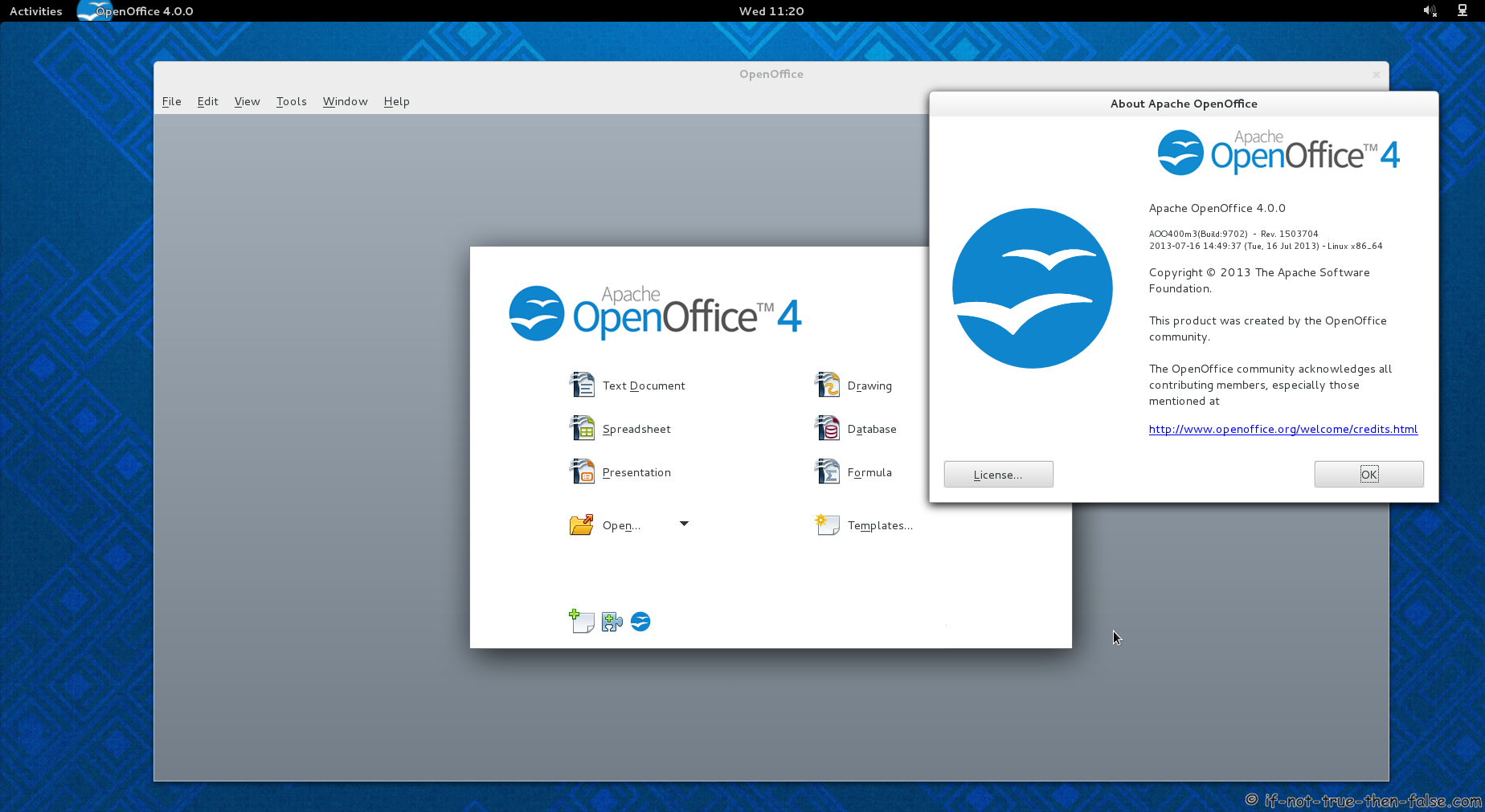
Apache OpenOffice 4.0.0 running on Fedora 19

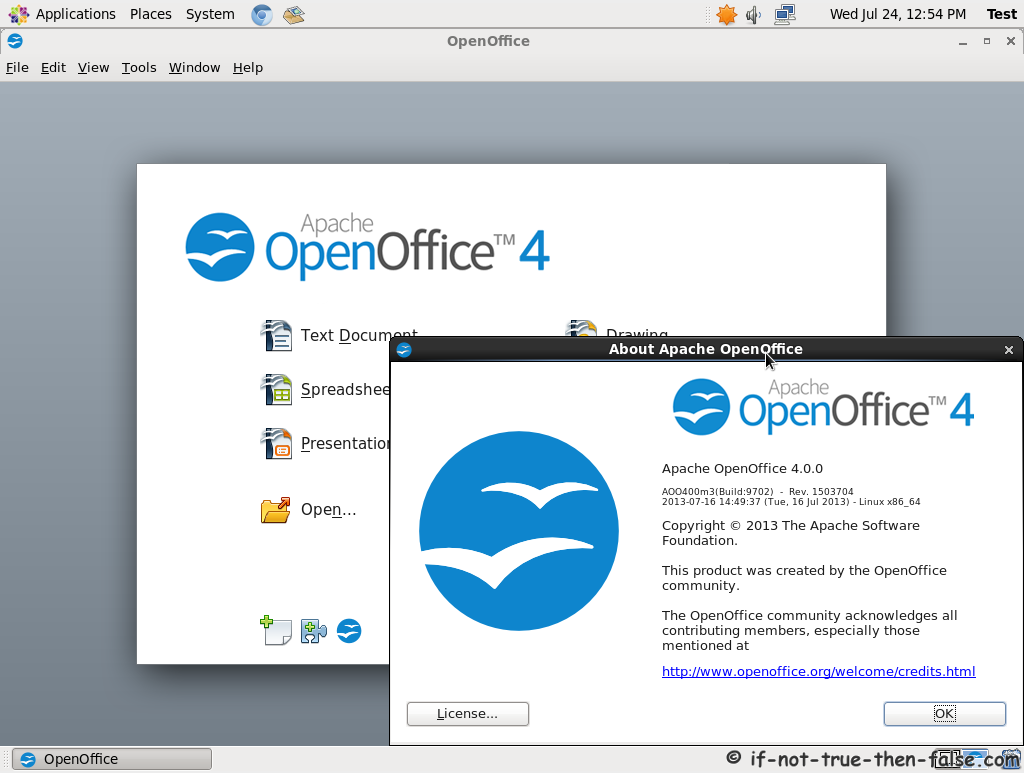
Apache OpenOffice 4.0.0 running on CentOS 6.4

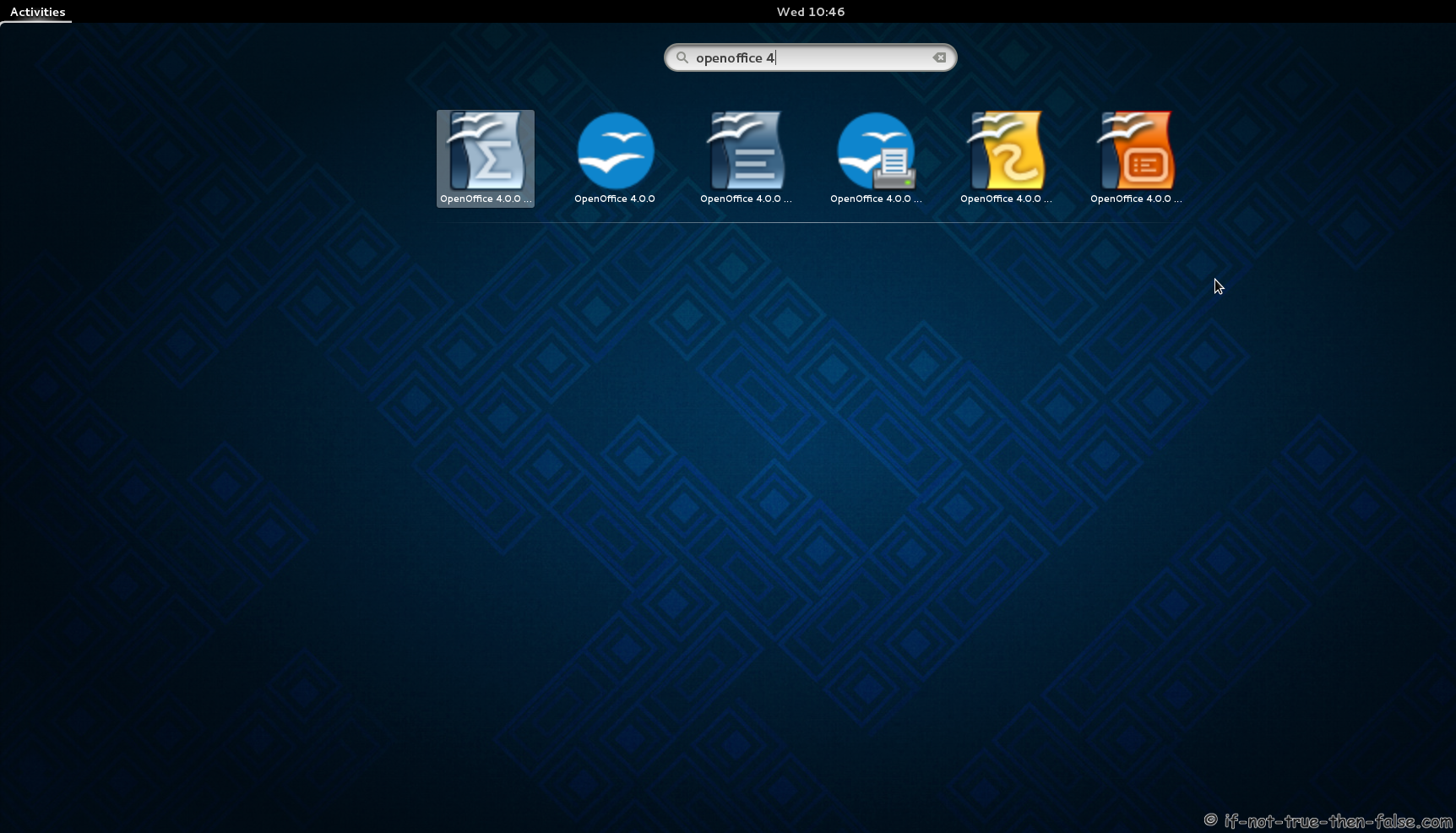
Apache OpenOffice 4 launchers on Fedora 19 Gnome Shell


Tuesday, December 3, 2013

Setting Up KVM Virtualization

Setting Up KVM Virtualization

KVM virtualization is included in the 2.6 Linux kernel, so all recent distributions support it without the need to install a custom kernel. However, it depends on the CPU supporting either the Intel VT or AMD-V virtualization extensions in order to run virtual systems at a reasonable speed.

On some systems, these extensions are disabled in the BIOS by default. Enabling them requires booting the system from the console, entering the BIOS menu and finding the option to turn on virtualization extensions. In some cases the system must then be fully shut down and started up again for this change to take effect.

For KVM instances to access the host system's network, you must setup a network bridge. These instructions assume that your host system has only one network interface, and it is eth0 .

Setting up a Host System Running Webmin

If your host system is running Webmin 1.554 or later, the network bridge can be created using the Webmin UI as follows :

  1. Go to Networking -> Network Configuration -> Network Interfaces, and select the ** Activated at Boot** tab.
  2. Click on eth0 and change the IPv4 address to No address configured. Remember the current IP address and netmask, as they will be needed in the next step. Click the Save button.
  3. Click Add a new bridge, and fill in the IP address and netmask that used to be assigned to eth0.
  4. In the Connect bridge to interface field select eth0, then click Create.
  5. Return to the main page of the Network Configuration module, and click on Routing and Gateways . Find the current default IPv4 gateway from the Active configuration tab, and enter it on the Boot time configuration tab with br0 selected as the interface.
  6. Go back to the main page of the Network Configuration module, and click the Apply Configuration button.

Setting up a Fedora, CentOS or Redhat Host System

To setup a Redhat-based system to host KVM instances, the steps to follow are :

  1. SSH in as root and install the KVM packages with the command yum install kvm qemu qemu-img parted
  2. In the /etc/sysconfig/network-scripts directory, copy ifcfg-eth0 to ifcfg-br0.
  3. Edit the new file and change the DEVICE line to DEVICE=br0.
  4. In the same file, remove the HWADDR line, and change the TYPE line to TYPE=Bridge
  5. Edit the ifcfg-eth0 file, and at the bottom add the line BRIDGE=br0
  6. Apply the network settings with the command service network restart . This should be done at the console, as it will break network access to the host system if anything goes wrong.
  7. To enable cgroups support for CPU limits, run
8.       yum install libcgroup
9.       /etc/init.d/cgconfig start
chkconfig cgconfig on
  1. If you want to prevent IP spoofing, install EBtables with the command yum install ebtables

Note that the eth0 device will no longer have an IP address; the br0 device has the IP after bridging is operational.

Setting up a Debian or Ubuntu Host System

  1. SSH in as root and install the KVM packages with the command apt-get install kvm qemu parted
  2. Edit the /etc/network/interfaces file and change it to be like :
3.       auto eth0 lo br0
4.        
5.       iface lo inet loopback
6.        
7.       iface eth0 inet manual
8.        
9.       iface br0 inet static
10.       address 192.168.1.1
11.       netmask 255.255.255.0
12.       broadcast 192.168.1.255
13.       network 192.168.1.0
14.       gateway 192.168.1.10
15.       bridge_ports eth0
16.       bridge_fd 9
17.       bridge_hello 2
18.       bridge_maxage 12
   bridge_stp off
  1. Apply the network settings with the command /etc/init.d/networking restart or by rebooting . This should be done at the console, as it will break network access to the host system if anything goes wrong.
  2. To enable cgroups support for CPU limits, run
21.    apt-get install cgroup-bin
22.    /etc/init.d/cgconfig start
update-rc.d cgconfig defaults
  1. If you want to prevent IP spoofing, install EBtables with the command apt-get install ebtables

Adding a New Host System

  1. Install Webmin on the host system, if it isn't already.
  2. Create a directory for storing KVM instance image files, typically /kvm . This can be located anywhere on the system though.
  3. Add the host system to Cloudmin at Add System -> Add physical system, if it isn't already.
  4. Go to Host Systems -> KVM Host Systems, click the Register a system for KVM hosting link and select your new host machine.
  5. Enter the directory you want to use for storing KVM instances, an IP range to allocate to virtual systems, and a DNS domain to add new systems to.
  6. Click the Register button.

‹ Setting Up Citrix Xen Virtualization up Setting Up LVM for Xen or KVM ›


Thursday, November 28, 2013

Configuration Options for Sending Messages

Configuration Options for Sending Messages

This page describes Thunderbird's configuration options as they relate to sending messages.

Configure where copies of sent messages are stored for the selected account

Menu location: Tools | Account Settings | <account name> | Copies & Folders

Configure where message drafts are stored for the selected identity

Menu location: Tools | Account Settings | <account name> | Manage Identities | <identity> | Copies & Folders

Configure where message drafts are stored for the selected account

Menu location: Tools | Account Settings | <account name> | Copies & Folders

Configure encryption settings for sending messages (for the selected identity)

Menu location: Tools | Account Settings | <account name> | Manage Identities | <identity> | Security

Configure a signature for an identity

Menu location: Tools | Account Settings | <account name> | Manage Identities | <identity> | Settings

Configure the reply-to address that is associated with an identity

Menu location: Tools | Account Settings | <account name> | Manage Identities | <identity> | Settings

Configure a signature for an identity

Menu location: Tools | Account Settings | <account name> | Manage Identities | <identity> | Settings

Specify a file containing a signature for use with an identity

Menu location: Tools | Account Settings | <account name> | Manage Identities | <identity> | Settings

Specify the outgoing (SMTP) server used to send messages for the selected identity

Menu location: Tools | Account Settings | <account name> | Manage Identities | <identity> | Settings

Configure where copies of sent messages are stored for the selected identity

Menu location: Tools | Account Settings | <account name> | Manage Identities | <identity> | Copies & Folders

Specify addresses to automatically CC or BCC on sent messages for the selected identity

Menu location: Tools | Account Settings | <account name> | Manage Identities | <identity> | Copies & Folders

Specify addresses to automatically CC or BCC on sent messages for the selected account

Menu location: Tools | Account Settings | <account name> | Copies & Folders

Specify whether your signature should be placed above or below the quote (for the selected identity)

Menu location: Tools | Account Settings | <account name> | Manage Identities | <identity> | Composition & Addressing

Specify whether your signature is included when forwarding messages (for the selected identity)

Menu location: Tools | Account Settings | <account name> | Manage Identities | <identity> | Composition & Addressing

Configure encryption settings for sending messages (for the selected account)

Menu location: Tools | Account Settings | <account name> | Security

Modify the server name, port, connection security, authentication method or user name for an SMTP server

Menu location: Tools | Account Settings | Outgoing Server (SMTP)

Specify whether your signature should be placed above or below the quote (for the selected account)

Menu location: Tools | Account Settings | <account name> | Composition & Addressing

Specify whether outgoing messages should include requests for return receipts (specific account)

Menu location: Tools | Account Settings | <account name> | Return Receipts

Specify whether outgoing messages should request return receipts (all messages)

Menu location: Tools | Options | Advanced | General

Specify how HTML-formatted messages should be sent when the recipient (or domain) does not accept HTML-formatted messages

Menu location: Tools | Options | Composition | General | Send Options

Specify whether you are prompted for confirmation when using a keyboard shortcut to send a message

Menu location: Tools | Options | Composition | General

Configure how forwarded messages are handled (inline or as attachment)

Menu location: Tools | Options | Composition | General

Configure whether email addresses from outgoing messages are automatically added to the address book

Menu location: Tools | Options | Composition | Addressing

Specify whether a vCard should be attached to outgoing messages

Menu location: Tools | Account Settings | <account name>

Create, edit or delete an outgoing SMTP server

Menu location: Tools | Account Settings | Outgoing Server (SMTP)

Configure the reply-to address that is associated with an email account

Menu location: Tools | Account Settings | <account name>

Specify a file containing a signature for use with an email account

Menu location: Tools | Account Settings | <account name>

Specify the outgoing (SMTP) server used to send messages for an email account

Menu location: Tools | Account Settings | <account name>

Specify whether your signature is included when forwarding messages (for the selected account)

Menu location: Tools | Account Settings | <account name> | Composition & Addressing

Configure a signature for an email account

Menu location: Tools | Account Settings | <account name>

Specify the default character encodings for sending and receiving messages

Menu location: Tools | Options | Display | Formatting - Advanced button


Shekhar Patil

Hindustan Pencils Pvt Ltd.
Sewri, EDP Dept.
Mumbai - 15
Tel-Direct:-91-22-24131165
Tel-Board -91-22-24125703/24112591 Ext. 459


Thursday, November 21, 2013

Mac OS X: How to manually add a Windows shared printer

Mac OS X: How to manually add a Windows shared printer

In some situations, you may be unable to locate a Microsoft Windows shared (SMB) printer while adding a printer, yet you can still add the printer manually if you know the name or address of the Windows computer sharing the printer and the name of the shared printer.

Mac OS X v10.5 or later

  1. Choose System Preferences from the Apple menu.
  2. Choose Print & Fax from the View menu.
  3. Click the + button to add a printer.
  4. Press the Control key while clicking the "Default" icon (or any other icon on the toolbar), then choose Customize Toolbar from the contextual menu that appears.
  5. Drag the Advanced (gear) icon to the toolbar.
  6. Click Done.
  7. Click the Advanced icon that was added to the toolbar.
  8. Choose Windows from the Type pop-up menu.
  9. In the URL field, type the printer's address in one of the following formats:

    smb://workgroup/server/sharename
    smb://server/sharename

    Note: "workgroup" is the name of the Windows workgroup that the computer sharing the printer belongs to. "server" is the name of the computer sharing the printer (or its IP address). "sharename" is the shared Windows printer's share name. If the share name contains spaces, replace each space with "%20" (without quotation marks).

    Tip: You don't need a "workgroup" when specifying the IP address of the computer (such as when the printer is on a different subnet), or if your Mac belongs to the same Windows (SMB) workgroup.
  10. In the Name field, type the name you would like to use for this printer in Mac OS X.
  11. Choose the appropriate PPD or printer driver from the "Print Using" pop-up menu.
  12. Click Add.
     

Mac OS X v10.3 through v10.4.11

  1. Open Printer Setup Utility (located in /Applications/Utilities).
  2. Mac OS X 10.4.x: Choose Add Printer from the Printers menu, then hold the Option key while clicking the "More Printers" button.
    Mac OS X 10.3.x: Hold the Option key while choosing Add Printer from the Printers menu.
     
  3. Choose Advanced from the first pop-up menu.
  4. Choose "Windows Printer via SAMBA" from the Device pop-up menu.
  5. In the Device Name field, type the name you would like to use for this printer in Mac OS X.
  6. In the Device URL field, use one of the following formats to link to the printer:

    smb://user:password@workgroup/server/sharename
    smb://user:password@server/sharename
    smb://workgroup/server/sharename
    smb://server/sharename

    Notes: "user" is the name of a Windows user who has privileges to use the printer. "password" is the password of that Windows user. "workgroup" is the name of the Windows workgroup to which the computer sharing the printer belongs. "server" is the name of the computer sharing the printer or its IP address. "sharename" is the shared Windows printer's share name.

    Tip: You don't need a "workgroup" when specifying the IP address of the computer (such as when the printer is on a different subnet), or if your Mac belongs to the same Windows (SMB) workgroup.
     
  7. Choose the appropriate PPD or printer driver from the "Printer Model" pop-up menu.
  8. Click Add.


How to Uninstall Microsoft Office 2013.doc

How to Uninstall Microsoft Office 2013

Edited by BernadetteWWal, SmarmySnodsnick, Teresa, Maniac and 1 other

Want to remove Microsoft Office 2013 from your Windows 7 computer? Here is the automatic and manual procedure on uninstalling Microsoft Office 365 Home Premium Preview for your Windows.

Edit Steps

1

Log on the using your Window Live/Hotmail account, click on the blue "Deactivate" link on the "My Account - Office.com" webpage.

2

Select the OK option from the next info box.

3

Click the expand menu on right top; scroll down and launch the "Sign out" option on the menu.

4

Close the Office - Office.com webpage. And then save and close all the running Office's application, i.e., the Access 2013, Excel 2013 and so forth.

    • Note You may log on to the "My Account - Office.com" webpage to re-activate any account associated with Office 2013 product.

5

From the Start menu, you open up the Control Panel entry on right pane.

6

Click on the Uninstall a program under the Programs link.

7

Using any administrative account on your Windows, you locate and launch the "Microsoft Office 365 Premium Preview -en-us" program (Note: Product version, 15.0.4148.1014) from the "Uninstall or change a program" list.

8

Click the Uninstall button on the Office (Uninstall) window.

9

Please wait minutes for the automatic removal process to complete.

10

In case you encounter the Microsoft Office Click-to-Run window while the automatic process is being performed, you then click the Close program button on it.

11

Click the Close button on the info box by Office, telling "Done uninstalling!".

12

Save all your personal files and restart your computer.

13

Right-click on the Programs and Features, run the Refresh option on the menu to reload the "Currently Installed Programs" list. And then remove Office 2013's component, SkyDrive (Product version, 16.4.4111.0525) from the list.

14

Click Yes on User Account Control.

15

Save and reboot your Windows again. For advanced users, you may try to manually find and remove the below Office 2013 program's remnants on your device, files type on the hard disk to clean them forcibly.

16

Search with registry editor and remove leftover registry entries of Office. You may install and use a registry cleaner for this purpose. Only mess up with registry, if you are an expert or you will end up damaging your programs or softwares.


Wednesday, November 20, 2013

RHEL / CentOS 6.x KVM Virtualization Installation and Configuration Guide

How do I setup and manage a virtualized environment with Kernel based Virtual Machine (KVM) in CentOS or Red Hat Enterpise Linux version 6 server on IBM server? Can you provide step-by-step commands of how to install and manage Virtual Machines (VMs) on a physical server using KVM for RHEL/CentOS version 6.4?

Tutorial details

Difficulty

Advanced (rss)

Root privileges

Yes

Requirements

VT enabled server

Estimated completion time

1h

KVM is part of RHEL and CentOS Linux. You can easily install the same using the following commands. Please note that only the package names have changed in RHEL/CentOS 6.x. If you are using RHEL / CentOS 5.x, read our previous CentOS / Redhat (RHEL) v.5.x KVM Virtulization guide for more information.

Install required KVM RPMs/packages

Type the following yum command
# yum groupinstall "Virtualisation Tools" "Virtualization Platform"
# yum install python-virtinst

OR
# yum install kvm qemu-kvm python-virtinst libvirt libvirt-python virt-manager libguestfs-tools
Sample outputs:

Loaded plugins: product-id, protectbase, rhnplugin
This system is receiving updates from RHN Classic or RHN Satellite.
0 packages excluded due to repository protections
Setting up Install Process
Package libvirt-0.10.2-18.el6_4.15.x86_64 already installed and latest version
Resolving Dependencies
--> Running transaction check
---> Package libguestfs-tools.x86_64 1:1.16.34-2.el6 will be installed
--> Processing Dependency: libguestfs-tools-c = 1:1.16.34-2.el6 for package: 1:libguestfs-tools-1.16.34-2.el6.x86_64
....
..
..
  spice-glib.x86_64 0:0.14-7.el6_4.3
  spice-gtk.x86_64 0:0.14-7.el6_4.3
  spice-gtk-python.x86_64 0:0.14-7.el6_4.3
  spice-server.x86_64 0:0.12.0-12.el6_4.5
  vgabios.noarch 0:0.6b-3.7.el6
  vte.x86_64 0:0.25.1-8.el6_4
Complete!

Turn on libvirtd service

The libvirtd program is the server side daemon component of the libvirt virtualization management system. Type the following to turn it on:
# chkconfig libvirtd on
Start the libvirtd service by typing the following :
# service libvirtd start
Sample outputs:

Starting libvirtd daemon:                                  [  OK  ]

You can verify the libvirtd service by tying the following commands:

# service libvirtd status
libvirtd (pid  31128) is running...
# virsh -c qemu:///system list
 Id    Name                           State
----------------------------------------------------

Sample setup

                     +-------------+
                     | CentOS/RHEL |             |-----|
     -->ISP router---+ Box Host w/ +--- eth0 -->-+ br0 +  Private IP
                     | KVM         |             |     |
                     +-------------+--- eth1 -->-+ br1 | Public IP
                                                 |-----|
                                                    |
                                                vm1-+---vm2----vm3---vm4
*** NOTE: each VMs will have two interface i.e. Private and Public *****

Where,

  1. eth0 - KVM servers' LAN interface.
  2. eth1 - KVM servers' WAN/Internet interface.
  3. br0 - KVM servers' bridge interface to give VM direct access to all the resources on the LAN.
  4. br1 - KVM servers' bridge interface to give VM direct access to all the resources on the WAN/Internet. Users can ssh into VMs or you can host HTTPD/SMTPD using this interface.
  5. obsd-vm1 (vm1) - OpenBSD VM name.
  6. rhel-vm1 (vm2) - RHEL VM name.

Install and configure a network bridge

All VMs will only have network access to host and other VMs on same physical server via private network. You need to crate a network bridge so that the VMs can access your LAN and possible the Internet/WAN from outside. Type the following yum command to install bridge-utils package:
# yum install bridge-utils

Setup a default gateway

Edit /etc/sysconfig/network as follows
# cat /etc/sysconfig/network
NETWORKING=yes
HOSTNAME=kvm-42.cyberciti.biz
## I am routing internet traffic via br1 ##
GATEWAYDEV=br1

Configure bridging

Update /etc/sysconfig/network-scripts/ifcfg-eth0 (private) as follows:
# cat /etc/sysconfig/network-scripts/ifcfg-eth0
DEVICE=eth0
ONBOOT=yes
HWADDR=00:30:48:C6:0A:D8
BRIDGE=br0

Update /etc/sysconfig/network-scripts/ifcfg-eth1 (public) as follows:
# cat /etc/sysconfig/network-scripts/ifcfg-eth1
DEVICE=eth1
ONBOOT=yes
HWADDR=00:30:48:C6:0A:D9
BRIDGE=br1

Create/edit the /etc/sysconfig/network-scripts/ifcfg-br0 file to setup private/lan ip address for br0:
# cat /etc/sysconfig/network-scripts/ifcfg-br0
DEVICE=br0
TYPE=Bridge
BOOTPROTO=static
ONBOOT=yes
## setup LAN/VLAN ips as per your needs ##
IPADDR=10.10.29.66
NETMASK=255.255.255.192
DELAY=0

Create/edit the /etc/sysconfig/network-scripts/ifcfg-br1 file to setup public/wan/internet ip address for br1:
# cat /etc/sysconfig/network-scripts/ifcfg-br1
DEVICE=br1
TYPE=Bridge
BOOTPROTO=static
ONBOOT=yes
## setup INTERNET ips as per your needs ##
IPADDR=74.ww.xx.yy
NETMASK=255.255.255.248
GATEWAY=74.ww.xx.yy
DELAY=0

I need to route all lan traffic (subnet 10.0.0.0/8) via 10.10.29.65 gateway. Create/edit file /etc/sysconfig/network-scripts/route-br0 as follows:
# cat /etc/sysconfig/network-scripts/route-br0
10.0.0.0/8 via 10.10.29.65

Warning: Restarting network service over the ssh session may result into total loss of the connectivity to the server. So make sure br0 and br1 configuration including routing set correctly.

A note about SELinux

I have not disabled SELinux on CentOS / RHEL. I do not recommend disabling SELinux. So make sure the config file has correct SELinux permissions:
# ls -Z /etc/sysconfig/network-scripts/{route-br0,ifcfg-eth?,ifcfg-br?}
Sample outputs:

-rw-r--r--. root root system_u:object_r:net_conf_t:s0  /etc/sysconfig/network-scripts/ifcfg-br0
-rw-r--r--. root root system_u:object_r:net_conf_t:s0  /etc/sysconfig/network-scripts/ifcfg-br1
-rw-r--r--. root root system_u:object_r:net_conf_t:s0  /etc/sysconfig/network-scripts/ifcfg-eth0
-rw-r--r--. root root system_u:object_r:net_conf_t:s0  /etc/sysconfig/network-scripts/ifcfg-eth1
-rw-r--r--. root root system_u:object_r:net_conf_t:s0  /etc/sysconfig/network-scripts/route-br0

Use restorecon command to set or restore file(s) default SELinux security contexts:
# restorecon -Rv /etc/sysconfig/
If you are going to reboot the SELinux enabled server, make sure you type the following command:
# touch /.autorelabel
# reboot

Restart the networking service

Type the following command to restart networking on RHEL/CentOS/SL:
# service network restart

Verify br0/br1 settings

Type the following commands:
# brctl show
# ip addr show br0
# ip addr show br1
# ip route
# ping cyberciti.biz

Creating VMs

You need to use virt-install command.

Example: Create OpenBSD VM

Grab, installation media:
# cd /var/lib/libvirt/boot/
# wget http://ftp.openbsd.org/pub/OpenBSD/5.4/amd64/install54.iso

In this example, I am using virt-install to create a OpenBSD 5.4_amd64 VM named obsd-vm1 with one virtual CPU, 1 GB memory and 10 GB of disk space:
# virt-install \
-n obsd-vm1 \
--description "cyberciti.biz OpenBSD 5.4 64 bit VM1" \
--ram=1024 \
--vcpus=1 \
--cpu host \
--os-variant=openbsd4 \
--accelerate \
--hvm \
--cdrom /var/lib/libvirt/boot/install54.iso \
--network bridge:br0,model=virtio --network bridge:br1,model=virtio \
--graphics vnc \
--disk path=/var/lib/libvirt/images/openbsd-vm1-cyberciti.biz.img,bus=virtio,size=10

virt-install options

  1. -n obsd-vm1 : The name of the VM.
  2. --description "cyberciti.biz OpenBSD 5.4 64 bit VM1" : The long description of the VM.
  3. --ram=1024 : 1024MB is the amount of memory allocated to the VM.
  4. --vcpus=1 : The number of virtual CPU(s) for the VM.
  5. --cpu host : Optimize CPU properties for the VM.
  6. --os-variant=openbsd4 : This is the VM OS type.
  7. --accelerate : Prefer KVM or KQEMU (in that order) if installing a QEMU guest. This option is no longer required.
  8. --hvm : Request the use of full virtualization.
  9. --cdrom /var/lib/libvirt/boot/install54.iso : Install OpeBSD v5.4 from an iso the location parameter.
  10. --network bridge:br0,model=virtio --network bridge:br1,model=virtio : Create a network bridge using br0 and br1 i.e. the VM will have two network interface for LAN and Internet.
  11. --graphics vnc : Use VNC to access installation using vnc server/viewer from your local Linux/OSX/Unix/Windows desktop.
  12. --disk path=/var/lib/libvirt/images/openbsd-vm1-cyberciti.biz.img,bus=virtio,size=10 : This is is the image file for the VM, the size is specified in GBs and I am forcing vio driver. The virtio driver provides support service for paravirtualized devices using the VirtIO protocol.

How do I connect to OpenBSD installer from my local desktop?

Type the following command on your local desktop:
# ssh -L 5900:127.0.0.1:5900 root@KVM-Server-IP-Here
OR
# ssh -L 5900:127.0.0.1:5900 -N -f -l root kvm-42.cyberciti.biz
Use VNC client to connect to 127.0.0.1:5900. Now, just follow on-screen instructions:

Fig.01: OpenBSD installation started over the VNC session

Before rebooting the installer make sure you setup com0 console for the VM. For example, for a OpenBSD VM, append the following parameters to the file /etc/boot.conf and then reboot the VM:
stty com0 115200
set tty com0

See how to stup SSH to tunnel VNC traffic though the Internets for more information.

How do I start my VM after OpenBSD install is finished?

The virt-install will create a config file for VM at /etc/libvirt/qemu/obsd-vm1.xml. To start VM called obsd-vm1, enter:
# virsh start obsd-vm1

How do I access a VMs console?

Login to KVM host and type the following command:
# virsh console obsd-vm1
Sample outputs:

Fig.02: Getting access to a OpenBSD VM console when networking is down

Final example: Create RHEL VM using DVD

Type the following command:

# virt-install \
--name RHEL-vm1 \
--description "cyberciti.biz RHEL 6.4 64 bit VM1" \
--ram=2048 \
--vcpus=2 \
--disk path=/var/lib/libvirt/images/rhel-vm1-cyberciti.biz.img,size=20 \
--cdrom /var/lib/libvirt/boot/RHEL.6.4.Server-DVD1.iso \
--network bridge:br0 --network bridge:br1 \
--graphics vnc

Before rebooting the installer make sure you setup com0 console for the VM. For example, for a RHEL/CentOS VM, append the following parameters to the kernel boot line in /boot/grub.conf file and then reboot the VM:
console=tty0 console=ttyS1,19200n8

Stay tuned for the following advanced topics in "RHEL/CentOS v6.x KVM" (rss) series:

  • Firewall, kVM & VMs security configuration.
  • Attaching storage device to a VM.
  • Changing VM parameters such as RAM, CPU, Disk and more.
  • Managing and cloning VMs and more.